
Click here first to purchase Guitar Pro
This tutorial is only for PC users - Mac users, well, some of the functions and cool icons will not show on a Mac ;(
If you download the Demo version, it does not come with the cool instrument samples, but will still work.
After you install it, you can email me and request your specific lesson in the Guitar Pro format. Be sure to make yourself a folder in My Documents or any easy to find location and name a folder "GuitarLessons" so you can easily find your Guitar Pro files.
Playing a File
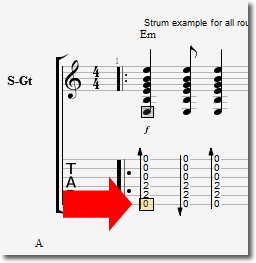
When you open the file I give you - you can click the mouse on any section of the song to play the file from there - usually it will default at the beginning of the program. You can hit the Spacebar on your keyboard - this will PLAY the song - the Spacebar will also STOP the song. Here is where you can click on a note at the beginning of any measure:
Adjusting Tempo (Speed of song)
If you want to change the speed of the song (Tempo),you can either double-click on the "BPM" (Beats Per Minute)value which is shown at the top left side near the beginning of song:
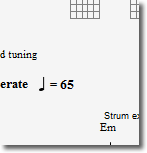
After you click on the tempo of the song the following dialog box will appear and simply put in the new tempo you want, then hit "Enter"
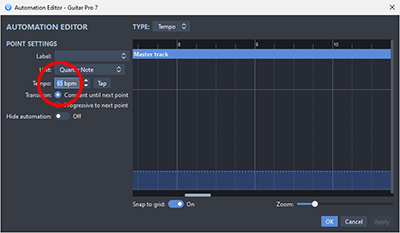
Change the number to a comfortable speed for yourself - you can change the tempo anytime you feel you need to slow things down or speed things up. Be sure not to save the file - you want to keep everything intact as to what I set it up at.
Having a "Count-in" Before Song/Section StartsLook for the "Hourglass Icon" at the very top and center part of the program:
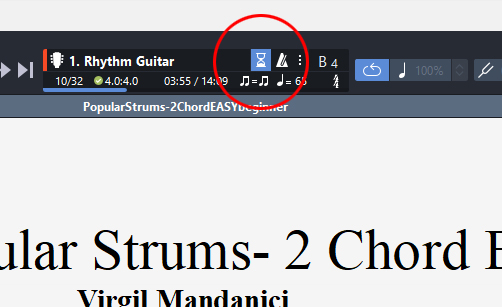
This is the "Count-in" icon, if you turn this option on, you will get a count-in before the song starts - this will give you time to get ready on your guitar. This icon is located right next to the BPM dialog at the bottom right hand side of tool bar.
Looping a Section
If you get to a section of the song that you want to repeat, or "Loop", simply left-click down with your mouse at the beginning of the loop and drag across the notes you want looped - this will highlight the section with a blue color. (Just like sweeping/hilighting text)
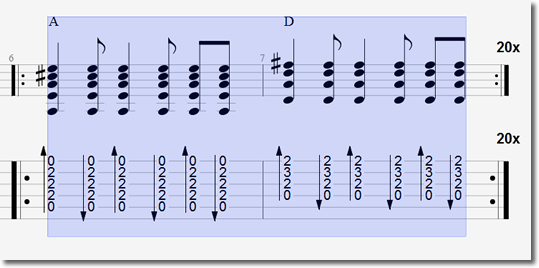
Now you can open up the Play in Loops/Speed Trainer by clicking F9 on your keyboard (Sometimes you may have to click it twice) OR, you can click on the following icon on the top toolbar:
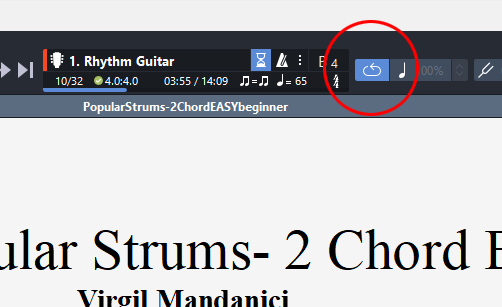
Select the "Simple Loop" button and then click OK.
Adjusting Volumes
You also have a handy little mixer at the bottom left of the program - here you can adjust the volumes on the instruments that are in the file. Not all files have multi-tracks in there - sometimes it may just contain a guitar. The picture below shows the mixer - try lowering the volume of the guitar:
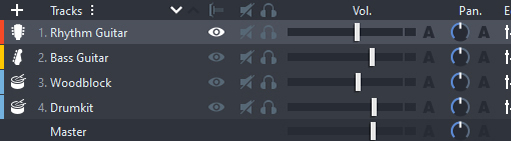
So with that in mind, you should try (Sometimes) to lower the guitar all the way and you can play along with the Bass & Drums.
Be sure to visit the Help section of the program for much more information, as I do not give phone support or email support. Please direct any technical problems to the Guitar Pro Support here: https://support.guitar-pro.com/hc/en-us